You pay for fiber at several hundred megabits, and yet the living-room TV struggles to hold a Full HD stream. This paradox is very common: the speed does reach the router, but it is lost over the few meters separating it from the TV. Load-bearing walls, neighbors on the same Wi-Fi channel, a badly placed extender, a limited network port: the causes are many. This guide compares the three main ways of connecting a TV, an Android box or an HDMI stick to your network, with their real speeds and their pitfalls.
What a TV really needs
For video, the need is not extreme: a 4K HEVC stream generally runs between 15 and 25 Mb/s, a Full HD stream between 5 and 10 Mb/s. What matters most is that this speed is stable, with no sudden drops or packet loss. A perfectly constant 40 Mb/s link is better than one that swings between 5 and 400 Mb/s depending on whether someone walks past the microwave. Orders of magnitude by quality are detailed in the article what internet speed for 4K streaming.
One detail often comes as a surprise: many TVs, even recent ones, only have a 100 Mb/s Ethernet port (Fast Ethernet). This is not a problem for video, since 100 Mb/s comfortably covers four 4K streams; it is only a figure that looks disappointing in a speed test.
Ethernet: the reference
The network cable remains the most reliable solution. It offers constant speed, very low latency and no sensitivity to interference. If your TV is within reach of the router or a wall network jack, it is the choice to make.
Which cable to choose?
- A Category 5e cable carries 1 Gb/s up to 100 meters, which is more than enough for home use.
- Categories 6 and 6A bring better resistance to interference and allow 10 Gb/s over shorter or longer distances; useful for lasting wiring inside walls, unnecessary for connecting a TV.
- Flat cables slip under a baseboard or a door, but are a little more sensitive to interference: keep them for short lengths.
If the router is far away
A switch with a few ports, placed behind the TV stand, lets you connect the TV, a console and an Android box with a single cable from the router. In a recent home, check the wiring panel: the RJ45 jacks of the rooms often end up there, and you only need to link the right jack to the router with a short patch cable.
Wi-Fi: 2.4 GHz, 5 GHz and 6 GHz
Wi-Fi is convenient but shared: all the devices on the same band and your neighbors' networks compete for the same radio spectrum. Understanding the frequency bands helps you choose well.
| Band | Range | Practical speed | Congestion |
|---|---|---|---|
| 2.4 GHz | Good, passes through walls better | Often 20 to 70 Mb/s | Very high in apartment buildings, few independent channels |
| 5 GHz | Medium, weakened by thick walls | Often 100 to 500 Mb/s | Moderate, many channels |
| 6 GHz (Wi-Fi 6E and 7) | Short, mainly within the same room | High | Low, but few compatible devices |
On 2.4 GHz, there are only three or four channels that do not overlap; in a building where twenty neighboring networks are visible, they interfere with each other. This band also suffers from microwave ovens, some baby monitors and Bluetooth devices. For a TV, prefer 5 GHz whenever the signal is decent.
One network or separate networks
Many routers broadcast a single network name for both bands and choose for each device. This automatic choice is not always a good one: a TV can stay stuck on 2.4 GHz. If your router allows it, create a distinct name for 5 GHz (for example by adding "-5G") and connect the TV to it explicitly. That way you can check which band it is on.
Placement matters more than anything
- Take the router out of the closed cabinet: thick wooden furniture or a metal cupboard greatly weakens the signal.
- Raise it: placed on the floor behind a sofa, it radiates poorly.
- Keep it away from dense obstacles: aquariums, mirrors, concrete load-bearing walls, large appliances.
- On the TV side, an HDMI stick pressed against the back of the screen receives poorly: a short HDMI extender, often supplied, moves it away from the panel and noticeably improves reception.
To measure the result, most TVs display signal strength in their network settings; on Android TV and Google TV, the connection information is in the network menu. The steps for different models are described on the Android TV and Samsung Smart TV pages.
Extenders and mesh systems
When the signal does not reach the room, the extender is the first thing people think of. It receives the router's Wi-Fi and retransmits it. The problem: a simple extender uses the same radio to receive and to transmit, which can cut the available speed in half. Placed too far from the router, it repeats an already weak signal and adds nothing.
The right rule: install the extender halfway, where it still picks up at least half the signal bars, and not in the room where the signal is missing.
Mesh systems use several nodes that coordinate their frequencies and hand devices over from one to another. The best have a band dedicated to traffic between nodes. Ideally, connect the nodes to each other by cable (this is called a wired backhaul): the mesh then performs as well as a wired network, with the flexibility of wireless. Many providers offer extenders compatible with their router, simpler to set up.
Powerline: Internet through the electrical outlets
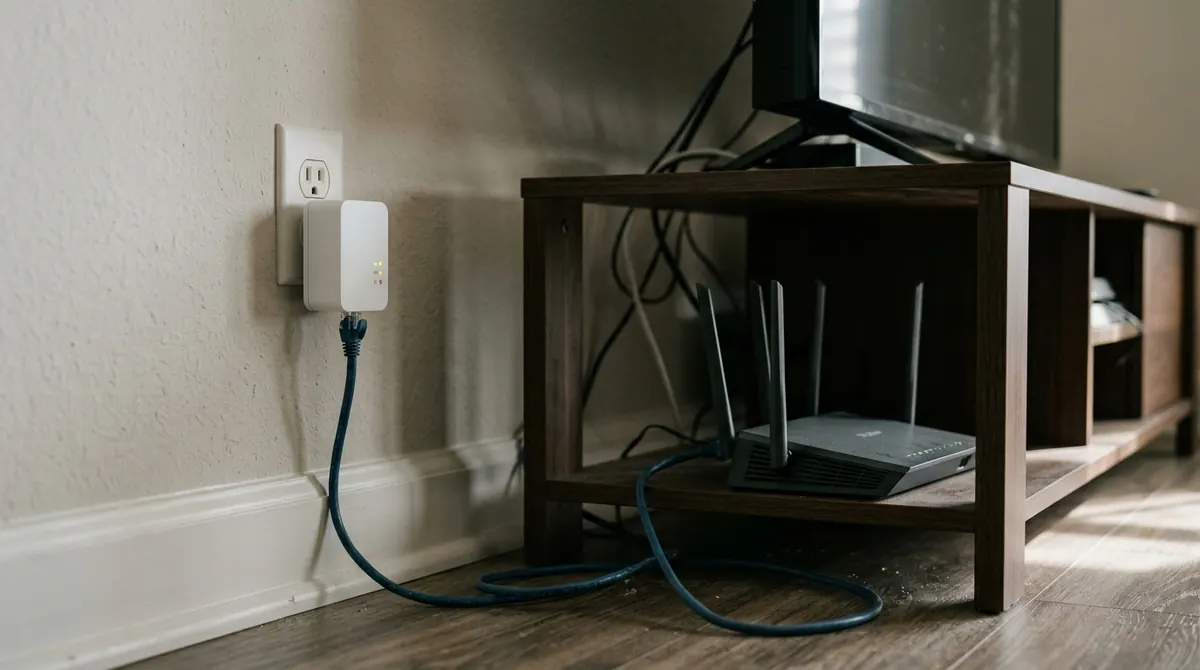
Powerline adapters send data over the electrical circuit: one unit plugged in near the router, another near the TV, connected to it by an Ethernet cable. It is an attractive solution when a cable is impossible and Wi-Fi is insufficient.
Figures to take with a grain of salt
The speeds printed on the boxes (600, 1,200, 2,000 Mb/s) are theoretical physical-layer speeds. In practice, you often get a few tens to a few hundred megabits, depending on the installation. That is plenty for video, as long as it is stable.
Conditions for success
- Plug the adapters directly into the wall, never into a power strip, and especially not a surge-protector strip, which filters out precisely the high-frequency signals.
- Both outlets must be on the same electrical installation (same meter); crossing from one phase to another or going through a sub-panel can badly degrade the signal.
- Keep the adapters away from chargers, dimmers, cheap LED lamps and motors (washing machine, vacuum cleaner) that generate noise.
- Pair adapters of the same generation and the same standard (HomePlug AV2 most often); do not mix incompatible models.
Some powerline adapters include a Wi-Fi access point: they form a sort of electrical mesh, handy for a distant floor.
Comparison table and choice by home
| Solution | Stability | Real speed | Installation | Ideal for |
|---|---|---|---|---|
| Ethernet | Excellent | 100 Mb/s to 1 Gb/s | Cable to run | TV close to the router or a pre-wired home |
| Wi-Fi 5 GHz | Good to medium | 100 to 500 Mb/s | None | Same room or neighboring room |
| Wi-Fi 2.4 GHz | Medium to low | 20 to 70 Mb/s | None | Stopgap, older devices |
| Mesh | Good | Variable, excellent with wired backhaul | Several nodes | Large house, several floors |
| Powerline | Variable depending on the circuit | About 50 to 300 Mb/s | Two adapters | Distant room, cable impossible |
In an apartment, with the router in the living room: a cable if possible, otherwise 5 GHz. In a two-story house: mesh or powerline, trying powerline first as it is cheaper. In every case, check the result with a speed test run from the TV, at the time you watch.
Common mistakes
- Chaining two extenders. Each wireless hop reduces speed and increases latency.
- Plugging powerline into the TV stand's power strip. It is the first cause of failure for this technology.
- Forgetting to restart the TV after changing networks: some models keep the old configuration in memory.
- Blaming the video player. If dropouts persist over Ethernet, the cause is elsewhere: see the guide fixing buffering.
In summary
- A TV needs stable speed more than high speed: a constant 25 Mb/s is enough for 4K.
- Ethernet remains the best option; a 100 Mb/s port is more than sufficient.
- On Wi-Fi, prefer 5 GHz and take care over the placement of the router and the HDMI stick.
- Extender halfway, mesh preferably linked by cable, powerline plugged directly into the wall.
- Always test from the TV itself, at the time of use.
Frequently asked questions
My TV shows only 94 Mb/s over Ethernet: is it faulty?
No. Its port is most likely limited to 100 Mb/s, and 94 Mb/s is the maximum usable speed of such a link. That is more than enough for several simultaneous 4K streams.
Does powerline work between two apartments or with a neighbor?
In principle, the signal is strongly attenuated by the meter, and recent adapters encrypt their traffic. Linking two separate homes by powerline is neither intended nor reliable.
Should I turn off the router's 2.4 GHz band?
No: many connected objects (plugs, cameras, printers) only work on 2.4 GHz. Just connect the TV to 5 GHz, creating a distinct network name for that band if needed.
Does Wi-Fi 6 improve video?
It handles homes with many devices better and reduces waiting times, but only if the router and the TV are both compatible. Good placement on Wi-Fi 5 often already gives a sufficient result.