Fire OS: Android without Google
Most Fire TV devices (Fire TV Stick, Fire TV Cube, some TVs) run Fire OS, a system derived from Android from which Amazon has removed all Google services. So there is no Play Store and no Google account: the store is the Amazon Appstore, and the Amazon account serves as your identity.
This kinship with Android has two consequences. On one hand, many Android TV apps also exist on Fire TV, often in an identical version. On the other, apps that depend on Google services (sign-in with a Google account, some casting features) may be missing or limited.
A recent nuance: Amazon has started equipping some new models with another system, Vega OS, which is no longer based on Android and accepts only apps from the Appstore. If your stick is recent, check the system under Settings > My Fire TV > About: what follows concerns devices running Fire OS, by far the most numerous.
| Item | Android TV / Google TV | Fire TV (Fire OS) |
|---|---|---|
| Store | Google Play Store | Amazon Appstore |
| Account | Google account | Amazon account |
| Remote installation | From play.google.com | From the Appstore page of the Amazon site |
| Voice assistant | Google Assistant | Alexa |
| APK files | Possible via unknown sources | Possible via developer options |
Installing an app from the Appstore
The stick must be registered to an Amazon account, which is done during the first setup. Then:
- On the home screen, select the magnifying glass (Find) or press the microphone button on the remote and say the app's name.
- In the results, choose the app's tile, checking the publisher shown on the page.
- Select Download (or Get). The app installs and appears under Your Apps & Channels.
To find it quickly, long-press the home button on the remote, choose Apps, move to the icon, press the Menu button (three lines) and choose Move to bring it up to the first positions, which show directly on the home screen.
Installing from a computer or phone
The Amazon site has an Appstore section. By searching for the app from a browser signed in to the same account, the page offers a Deliver to menu: choose your Fire TV and confirm. The installation starts as soon as the stick is on. It is also a good way to check, before buying a stick, that an app is available on Fire TV.
For a player such as AICKO IPTV, the page devoted to Android TVs and sticks gives the installation and setup particularities on these devices.
The real weak point: storage
Most Fire TV Sticks have 8 GB of storage, of which a large share is taken by the system; the 2nd-generation Fire TV Stick 4K Max goes up to 16 GB. In practice, between 4 and 5 GB often remain for apps and their data on an 8 GB model, and this space melts away fast: each video app stores thumbnails, posters, cached trailers, sometimes several hundred megabytes.
When free space drops too low, symptoms appear in a cascade: slow menus, apps that close, failed updates, the message "Internal storage almost full". To see where the stick stands: Settings > My Fire TV > About > Storage.
Clearing an app's cache
- Open Settings > Applications > Manage Installed Applications.
- Select the app: its page shows the size of the app, its data and its cache.
- Choose Clear cache. Settings and sign-ins are kept.
The neighboring option, Clear data, resets the app to zero as at first launch: playlists, preferences and sign-in disappear. Use it only if clearing the cache is not enough, and after noting your details.
Making room lastingly
- Uninstall what is no longer used, from the same list or with the Menu button on the icon.
- Be wary of "cleaner" or "boost" apps: they take up space themselves and do nothing the settings menu does not already do.
- Some models accept USB storage through an OTG adapter, but this complicates the connection and remains for experienced users.
Updates: system and apps
Appstore apps update automatically if the option is on: Settings > Applications > Appstore > Automatic Updates. The Fire OS system updates when the stick is on standby and connected. To force a check: Settings > My Fire TV > About > Check for System Update, then Install System Update if one has been downloaded.
Two practical remarks:
- A system update needs free space to unpack. If it fails for no apparent reason, clear some caches before trying again.
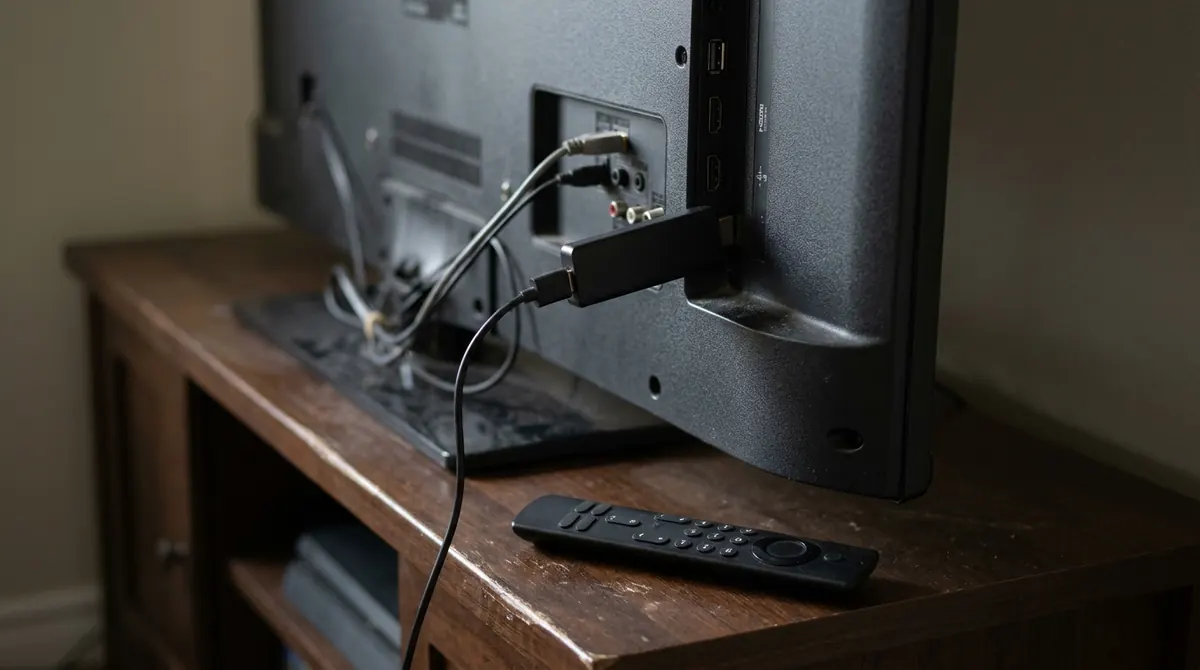
- A stick powered from the TV's USB port is cut off every time the screen turns off and never gets the chance to run its overnight updates. Plug it into the supplied power adapter instead, which also avoids unwanted restarts from lack of power.
Amazon states on its website how long each model receives security updates; the oldest generations are no longer supported. A stick that no longer receives patches remains usable, but apps eventually require a more recent version of Fire OS.
Developer options: what they allow and what they risk
As on any Android device, it is technically possible to install on Fire OS an app that is not in the Appstore, from an APK file. On recent versions, the menu needed is hidden:
- Go to Settings > My Fire TV > About.
- Press the device name (the first line) seven times: a message announces that you are now a developer.
- Go back: the Developer Options menu appears. It contains ADB debugging and the permission to install apps from unknown sources, granted app by app.
These settings are intended for developers testing their own app before publication. For everyday use, they cause real problems:
- APK files circulating on third-party sites are frequently modified: forced ads, spyware, participation in networks of hijacked machines. A Fire TV stick stays permanently connected to your home network.
- An app installed this way receives no updates through the Appstore.
- ADB debugging left on opens access to the stick from the local network.
- A large share of apps distributed only as APKs serve to access programs without the rights holders' permission. Amazon has also announced tighter blocking of this type of app, and watching content you do not hold the rights to remains illegal, whatever the device. Our article Legal or illegal IPTV details what the law provides.
If a trusted publisher officially provides you with an APK (test version, business app), download it only from its website, install it, then turn off the install permission and ADB debugging immediately.
Quick troubleshooting
Restarting the stick
On the remote, hold Select (center button) and Play/Pause for about five seconds: the stick restarts. You can also go through Settings > My Fire TV > Restart, or unplug the power for a few seconds. A weekly restart frees up RAM, which is limited to 1 or 2 GB depending on the model.
Symptom table
| Symptom | Common cause | Solution |
|---|---|---|
| Very slow menus | Storage almost full, RAM saturated | Clear caches, uninstall, restart |
| App not found in the Appstore | No Fire TV version, or model too old | Check the list of compatible devices on the Amazon site |
| Intermittent "No signal" screen | Insufficient power from the TV's USB port | Use the original power adapter |
| Drops during playback | Weak Wi-Fi behind the TV | Use the supplied HDMI extender, move closer to the router or switch to Ethernet with an adapter |
| The remote no longer responds | Weak batteries or lost pairing | Change the batteries, then hold the home button for ten seconds to re-pair |
Factory reset
As a last resort: Settings > My Fire TV > Reset to Factory Defaults. All apps and data are erased, and the stick starts again like new. If the menus are inaccessible, holding Back and the right arrow for about ten seconds also offers the reset.
If drops persist despite a clean stick, the problem often comes from the network rather than the device: our method for diagnosing buffering helps you find the cause.
Summary
- Fire TV works with the Amazon Appstore and an Amazon account, with no Google services at all.
- Limited storage is the first cause of slowness: clear caches and uninstall regularly.
- Keep automatic updates on and power the stick from its mains adapter.
- Developer options are reserved for files from trusted publishers, and to be turned off after use.
Frequently asked questions
Can the Play Store be installed on a Fire TV Stick?
Not officially. Fire OS includes no Google services, and workarounds are unstable and unsupported. If the Play Store is essential to you, a Google TV device is a better choice.
Does clearing the cache erase my sign-ins?
No. Clearing the cache only removes temporary files. It is the "Clear data" option that resets the app to zero.
How long does a Fire TV Stick receive updates?
It depends on the model; Amazon publishes support periods on its website. The first generations no longer receive security patches.
Should I turn the stick off every night?
No. Standby uses little power and allows automatic updates. An occasional restart is enough to free up memory.