Tizen, the operating system of Samsung TVs
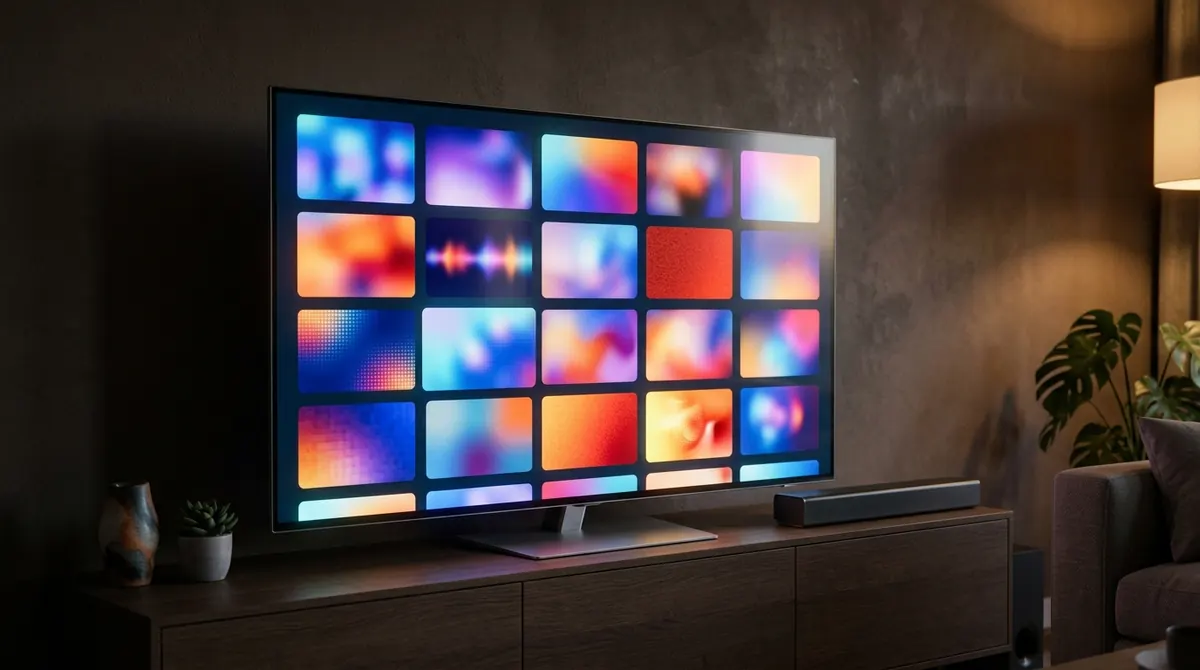
Since 2015, Samsung smart TVs have run Tizen, an operating system developed by Samsung from Linux. The home screen that appears when you press the "home" button on the remote is called the Smart Hub: it brings together your sources (HDMI, antenna), your apps and the store.
An important consequence: an Android app does not install on a Samsung TV. Publishers have to build a specific version, written with web technologies (HTML, JavaScript) and distributed as a .wgt package. That is why some apps available on Android sticks or phones do not exist on Tizen, or arrive later.
Each model year ships with a different version of the system. As a rough guide:
| Model year | Tizen version | Typical situation |
|---|---|---|
| 2015–2016 | 2.3 to 2.4 | Many recent apps are no longer offered |
| 2017–2018 | 3.0 to 4.0 | Shrinking catalog, some apps dropped |
| 2019–2021 | 5.0 to 6.0 | Catalog still broad |
| 2022 and later | 6.5 and later versions | Full catalog, regular updates |
To find out your TV's model year, read the model number under Settings > Support > About This TV: one letter codes the year (for example "T" for 2020, "A" for 2021, "B" for 2022, "C" for 2023 on recent series). The menus mentioned in this guide may differ slightly depending on that year.
The Samsung account: required for the store
On most models, installing an app from the Smart Hub requires you to be signed in to a Samsung account. It is free to create, either on the TV itself or more comfortably from a computer on Samsung's official website, and you then enter it under Settings > General > System Manager > Samsung Account (on recent models, the "Samsung Account" menu is sometimes reachable directly from the profile icon on the home screen).
Two tips to avoid getting stuck:
- Choose a strong password that you can still type with the remote, or use the QR code sign-in that recent models offer: you scan the code with your phone and sign in on the mobile screen.
- Check that the account's country matches the country where the TV is located. The app catalog depends on the Smart Hub region: a TV bought abroad or set to another country will not show the same apps.
The first time you sign in, the TV also asks you to accept the Smart Hub terms. If you declined them during the initial setup, the store stays out of reach: you can find them again under Settings > Support > Terms & Privacy.
Installing an app step by step
- Press the home button on the remote to open the Smart Hub.
- Go to Apps (an icon made of four squares, on the left or at the bottom of the screen depending on the year).
- Use the magnifying glass at the top right and type the name of the app. On remotes with a microphone, voice search works too.
- Open the app page, check the publisher's name, then select Install.
- Once the installation is finished, choose Add to Home to place the icon in the Smart Hub bar.
To move an icon in the bar, select it, press down (or hold the center button) and choose Move. The same menu lets you remove it from the home screen without uninstalling it.
For entering usernames or server addresses, Samsung's SmartThings app on your phone works as a remote with a keyboard: it is much faster than the on-screen keyboard. For a player such as AICKO IPTV, the steps specific to Samsung TVs are detailed on the Samsung Smart TV page.
Updating the TV and its apps
The TV software
The firmware fixes security flaws and often brings updates to the built-in video player that apps rely on. Go to Settings > Support > Software Update and choose Update Now. Also turn on Auto Update: the TV then installs updates while on standby.
If the TV is not connected to the Internet, Samsung publishes firmware on its support site: copy it to a USB stick formatted as FAT32, in a folder named as the instructions indicate, then start the update "by USB" from the same menu. Never cut the power during the process.
The apps
In Apps, the gear icon (Settings) at the top right opens the list of installed apps. Turn on Auto Update. When an app does not update on its own, select it in this list: the Update option appears if a newer version exists. Failing that, deleting and reinstalling the app solves most cases.
Resetting the Smart Hub and other fixes
Before touching any reset, start with the simplest measure, often enough on its own: the cold restart. Turning the TV off with the remote only puts it on standby; the system keeps running. There are two ways to really restart it:
- hold the power button on the remote until the Samsung logo reappears;
- or unplug the TV from the wall for at least thirty seconds.
Resetting the Smart Hub
If several apps crash, the store refuses to load or the Smart Hub shows an error, resetting it puts the app environment back to a clean state. On recent models the path is Settings > Support > Device Care > Self Diagnosis > Reset Smart Hub (on older models: Support > Self Diagnosis > Reset Smart Hub). The TV asks for a PIN: unless you changed it, it is 0000.
Be careful: this operation deletes the installed apps, their settings and the Samsung account sign-in. Write down your credentials first. Antenna channels and picture settings are kept.
The full reset
Last resort: Settings > General > Reset returns the whole TV to factory state, channels and picture included. Keep it for cases where nothing else has worked.
The limits of older models
A 2016 Samsung TV still works perfectly as a screen, but its "smart" side ages faster than its panel. Several things add up:
- End of updates: each model receives system updates for only a few years. Samsung announced in 2024 up to seven years of system updates for some recent models, but older generations do not benefit.
- Apps being withdrawn: publishers stop maintaining their version for older Tizen releases, whose web engine no longer handles recent technologies. The app disappears from the store or refuses to launch with a message such as "service unavailable".
- Video formats: a 2016 model cannot decode some recent formats such as AV1, which appeared in Samsung TVs around 2020. You may get sound without picture, or the reverse.
- Power: a limited processor and memory make navigation slow and cause demanding apps to close abruptly.
The budget solution is to plug a streaming stick into an HDMI port: the TV then serves only as a screen and the stick runs the apps. Our guide to choosing a streaming box or stick helps you avoid low-end models with no updates.
Troubleshooting: common symptoms
| Symptom | First thing to try | If that is not enough |
|---|---|---|
| The store shows "No network connection" although the Internet works | Cold restart, then Settings > General > Network > Network Status | Change the DNS in the IP settings (your router's or a public DNS), reset the Smart Hub |
| App missing from search | Check the Smart Hub country and the model year | Check the publisher's website to see whether your model is supported |
| The app closes on startup | Cold restart | Delete and reinstall, then reset the Smart Hub |
| "Not enough storage space" | Delete unused apps in Apps > Settings | Reset the Smart Hub, which also purges accumulated data |
| Choppy picture in one app only | Test the same content in another app | Connect the TV by Ethernet and compare; see our guide Wi-Fi, Ethernet or powerline |
For problems with the TV itself (warranty, parts, firmware), the official support at samsung.com lets you search guides and updates by model number.
Developer mode: best avoided
Tizen has a developer mode, which lets you install an app from a computer using Samsung's official tools. It is designed for publishers testing their code, not for the general public: the installation expires after a certain time depending on the certificate used, nothing is updated automatically, and an app installed this way has not been checked by Samsung. For everyday use, stay with the official store.
Summary
- Samsung TVs run Tizen: Android apps cannot be installed on them.
- A Samsung account set to the right country is needed to access the Smart Hub store.
- Turn on automatic updates for the TV and the apps.
- If something freezes: cold restart, then Smart Hub reset (default PIN
0000), then full reset. - On an older model, a streaming stick extends the life of the TV.
Frequently asked questions
Can I install an Android app on a Samsung TV?
No. Tizen does not run Android apps and has no access to the Play Store. You need a Tizen version of the app, or an Android streaming stick plugged into an HDMI port.
Does resetting the Smart Hub erase my TV channels?
No. It deletes the installed apps, their data and the Samsung account sign-in, but keeps the antenna channels and picture settings.
What PIN does the TV ask for?
By default, 0000. If that code does not work, it has been changed; the reset procedure depends on the model and is described in the TV's e-Manual.
Why did an app disappear from my older TV?
Its publisher stopped maintaining it for your version of Tizen. It may keep working for a while if already installed, but it can no longer be reinstalled or updated.