Android TV or Google TV: what are we talking about?
Two names are used for the same base. Android TV is Google's operating system adapted to living-room screens since 2014. Google TV is the newer interface laid on top of it: it highlights movie and series recommendations, groups services into tabs and requires a Google account to enjoy all its features. Under the hood, an app built for Android TV works the same way on Google TV.
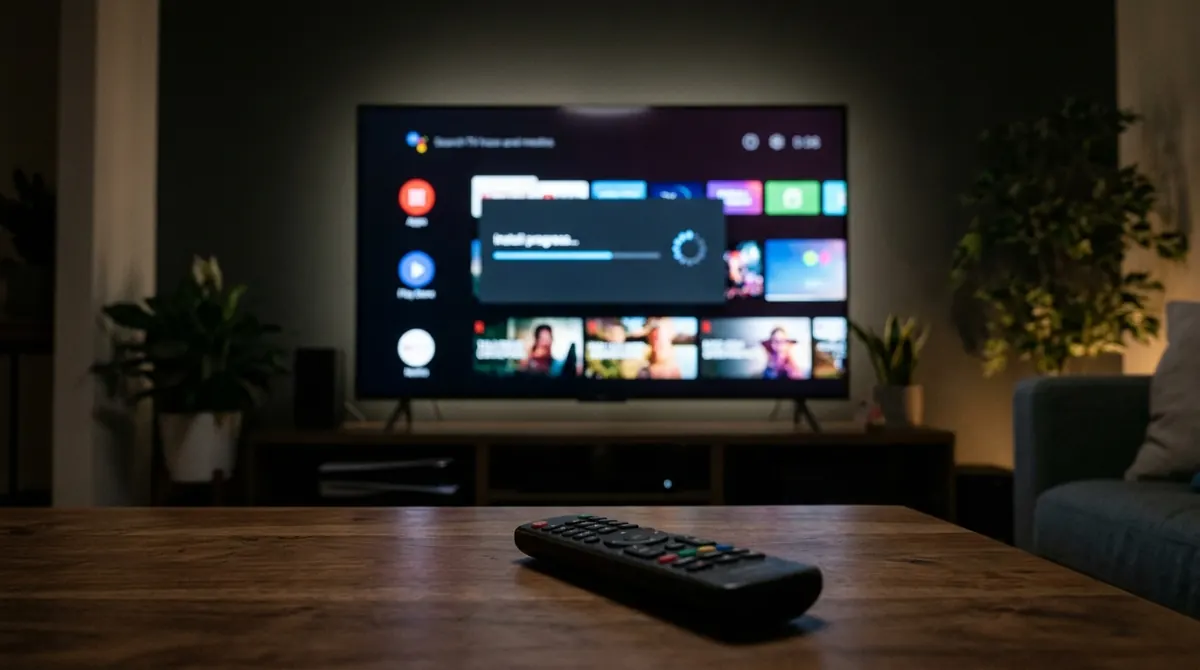
This system is found in three families of devices:
- TVs from several brands (Sony, TCL, Philips, Hisense depending on the range, Xiaomi...), where it is built in at the factory;
- streaming sticks and boxes that plug into an HDMI port, such as the Chromecast with Google TV or the Google TV Streamer;
- some operator boxes, which add their own layer of services while keeping the Google store.
To find out what you have, open Settings > System > About: the "Android TV OS version" line shows the system version, and the home screen (tabs such as "For you", "Movies", "Shows") reveals Google TV. This matters because menus differ slightly from one device to another; the paths given below are those of recent versions and may vary by a word depending on the manufacturer.
Before you start: a Google account and an up-to-date device
The Google Play Store is the only official store on these devices. It requires a signed-in Google account. On Google TV, the initial setup even offers a "basic TV mode" with no account: this is handy for a spare TV, but this mode disables app installation. If the store is missing from your home screen, check this first in Settings > Accounts & Sign-In.
Two other checks save a lot of trouble:
- The system update: Settings > System > About > System update. Some apps require a minimum Android version and stay invisible in the store until the device reaches it.
- Free space: many devices have only 8 GB of storage, a good part of which is taken by the system. The details are in Settings > System > Storage. Below 1 GB free, installs and updates often fail with a vague message.
Finally, a kids profile on Google TV only gives access to apps approved by the parent. If you are on such a profile, switch back to the main profile before installing.
Method 1: install from the TV's Play Store
This is the normal and safest method. On Google TV, you get there through the Apps tab and then "Search for apps"; on classic Android TV, through the Google Play Store icon in the apps row.
- Start the search and type the app's name, or say it with the remote's microphone button.
- Open the listing: check the publisher name, the number of downloads and the date of the last update. Misleading copies also exist on official stores.
- Choose Install. The icon then appears in the apps list; on Google TV, you can pin it to the top of the home screen with a long press.
If an app you use on your phone cannot be found on the TV, it is not a bug: its publisher simply has not released a TV-compatible version. Google only shows in the TV store the apps declared usable with a remote and without a touch screen.
Method 2: install remotely from a phone or a computer
Typing a name with the remote is tedious. Google lets you start the installation from another device signed in to the same Google account:
- From the Play Store on an Android phone: on the app's page, the install button often offers an arrow or a "More devices" menu; tick the TV and confirm.
- From a browser on
play.google.com: sign in with the same account, open the listing and choose the target device from the list. The download starts on the TV as soon as it is on and connected. - From the Google TV app on your phone, which also works as a remote with a keyboard: much faster for typing a login or a server address.
If the TV does not appear in the device list, it is generally because it is not signed in with the same account, or because the app is not compatible with it. The official help page support.google.com/googletv details these cases by model.
Method 3: unknown sources, and why to be wary
Android lets you install an APK file (an app's installation package) obtained outside the store. This is called sideloading. It is sometimes legitimate: a publisher distributing a test version, an internal business app, or software not yet approved by Google. But it is also the main entry point for malware on TVs.
How it works
Since Android 8, permission is no longer global: it is given app by app. In Settings > Apps > Security & restrictions > Unknown sources, you allow one specific app (a file manager, a browser) to install APKs. On some recent versions of Google TV, you must first enable developer options: in Settings > System > About, press the "Android TV OS build" line seven times until the confirmation message appears.
The real risks
| Risk | What can happen | How to limit it |
|---|---|---|
| Modified APK | Malicious code added to a known app: intrusive ads, mining, credential theft | Download only from the publisher's official website |
| No updates | The app no longer receives security patches | Go back to the official source regularly |
| Excessive permissions | Access to the local network and other devices in the home | Check the permissions in the app's settings |
| Permission left open | Another app can then install whatever it wants | Remove the "Unknown sources" permission right after installing |
Google Play Protect also scans apps installed from outside the store and can block a file recognized as dangerous. Never turn this protection off to "force" an installation: if it raises an alert, there is a reason.
One last point, a legal one: many apps distributed exclusively as APKs give access to content without the rights holders' permission. Installing a player is not illegal in itself; watching programs you do not hold the rights to is. Our article Is IPTV legal or illegal? looks at what the law says.
Advanced variant: ADB from a computer
Users comfortable with the command line can install an APK over the network with ADB (Android Debug Bridge), the official Android developer tool. After enabling developer options and then network debugging (or "wireless debugging") on the TV, you connect the computer like this:
adb connect 192.168.1.42:5555
adb install mon-application.apk
adb disconnect
The TV's IP address is in Settings > Network & Internet. On recent versions, wireless debugging requires pairing with a code shown on screen: the command becomes adb pair address:port before the connect. Turn debugging off once you are done: left open, it lets any device on the local network attempt a connection.
Updating, uninstalling, freeing up space
Updates
By default, the Play Store updates apps automatically, generally while the TV is in connected standby. To check or force it: open the Play Store, select your profile picture at the top right, then Manage apps and games > Updates. The "Auto-update apps" setting is in the store's settings. An app installed from outside the store, on the other hand, will never update by itself this way: it is up to you to reinstall the new version.
A common trap: if the TV is unplugged from the outlet every evening, it never gets the chance to run its overnight updates. In that case, run a manual check from time to time.
Uninstalling and gaining space
In Settings > Apps, each app offers three useful buttons:
- Clear cache: deletes temporary files (images, thumbnails). Safe, as your settings are kept.
- Clear data (or "Clear storage"): resets the app to zero. Logins, playlists and preferences are lost.
- Uninstall: removes the app. Preinstalled apps can often only be disabled, which at least frees the space taken by their updates.
On an 8 GB device, two or three cache-hungry video apps are enough to fill the storage. Sort things out once a quarter.
The most common problems and their fixes
| Symptom | Likely cause | Fix |
|---|---|---|
| "Download pending" forever | Another update in progress, or a stuck queue | Wait for updates to finish, then clear the Play Store cache |
| "Insufficient storage space" | Less than 1 GB free | Clear caches, uninstall what you do not use |
| App not found in the store | No TV version, or system too old | Check compatibility with the device on play.google.com |
| The app closes at launch | Incomplete update or corrupted data | Clear the cache, then clear the data, then reinstall |
| "App not installed" with an APK | Incompatible file (architecture) or signature different from a version already present | Uninstall the old version or get the right file from the publisher |
As a last resort, a full restart (unplug the power for thirty seconds, not just standby) fixes a surprising share of store hangs.
If you install a player such as AICKO IPTV, the procedure and settings specific to these devices are described on the Android TV and Google TV page. For TVs from other brands, also see our guide to Samsung Tizen apps.
In summary
- The Play Store, with a signed-in Google account, remains the simplest and safest way to install.
- Remote installation from a phone or
play.google.comsaves you typing with the remote. - Unknown sources and ADB are for files from the official publisher only, with the permission removed afterwards.
- Watch your free space: under 1 GB, installs and updates fail.
Frequently asked questions
Can I use a Google TV without a Google account?
Yes, thanks to basic TV mode, but it allows neither installing new apps nor receiving recommendations. To install anything, you need to sign in with a Google account.
Why does an app from my phone not exist on my TV?
Its publisher has not released a version adapted to the remote and the living-room screen. The TV's Play Store only shows apps declared compatible.
Is enabling developer options dangerous?
Not in itself: it only reveals an extra menu. The risk comes from the settings you enable there, such as network debugging or unknown sources, which are best turned off after use.
Do apps update while the TV is off?
Only in connected standby. If the device is unplugged from the outlet, updates happen the next time you switch it on, or must be started by hand from the Play Store.